Showing posts with label error. Show all posts

Sometimes when you launch SOLIDWORKS and try to load SOLIDWORKS Toolbox Library or Utilities add-in, SOLIDWORKS delivers a message stating “You appear to have experienced problems the last time you loaded the SOLIDWORKS Toolbox add-in”.

SOLIDWORKS Message

  • If you pick yes, continue to load Toolbox, SOLIDWORKS stops responding?! 
  • However, if you pick No, disabling Toolbox, everything seems to work fine.
This issue is only experienced in SOLIDWORKS 2017. 

This issue has been fixed in SOLIDWORKS 2017 SP4 which is scheduled to be released for the week of July 24th, 2017.


To avoid the issue in previous service packs of SOLIDWORKS 2017 you should delete the ‘tb_default.sldedb’ from ‘<C:\Users\<user>\AppData\Roaming\SOLIDWORKS\SOLIDWORKS 2017\Toolbox\data’.


Then re-launch SOLIDWORKS, you should have no issues adding the Toolbox Library or Utilities add-in.


Article by Vipanjot Kaur - CSWP

Have you ever seen these messages before launching SOLIDWORKS? There is no SolidWorks database. Full functionality is not available.

SW-errors SolidWorks Database is missing error message
SolidWorks Database is missing error message
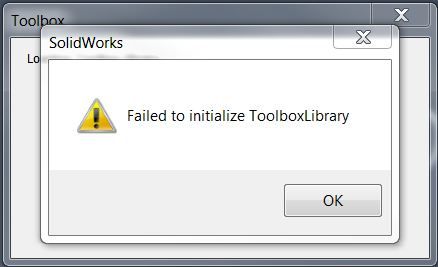
There is no error message in the SolidWorks database Or what about the SOLIDWORKS error message? Failed to initialize library of tools
Solidworks Errors  Message
Failed to initialize Error Message
Not to worry! This means that the Hole Wizard / Toolbox function could not find the important database file SWBrowser.mdb.

Solving the problem of the lack of a SOLIDWORKS database

The fix is ​​simple. Open the SOLIDWORKS settings in the Tools> Options menu and select the Hole Wizard / Toolbar on the System Settings tab.
Change Solidworksdata path
SolidWorks Toolbox options

The path specified in the "Hole Wizard and Tools" folder must contain the \ lang \ english folder, and the English folder must have the SWBrowser.mdb file. When you install SolidWorks by default, you must set the parameters that point to C: \ SolidWorks Data, and the MDB file will be located in the C: \ SolidWorks Data \ lang \ english \ SWBrowser.mdb folder.
Therefore, if you have error messages, go to the folder specified in the toolbar options, and see if there is a file \ lang \ english \ SWBrowser.mdb. And make sure that you have full permissions to get there! If necessary, change the path to the Toolbox above by clicking the "..." button.

If you can not find the SWBrowser.mdb file or if you still have problems, try repairing SOLIDWORKS


Article by Scott Durksen, CSWE

Windows 7, 8.1 and 10, include a feature called User Account Controls (UAC) which prevents access to the Windows registry files. However SOLIDWORKS requires access to the Windows registry during installation and even when running.


Issues when installing SOLIDWORKS


During installation, many items are written to the registry. With UAC enabled, these items can become corrupt or blocked completely as it is attempting to prevent the installation. It is recommended to disable the UAC, along with any antivirus/antispyware software, before installing SOLIDWORKS. If SOLIDWORKS was installed with the User Account Controls and Antivirus enabled, you may experience issues with your software.


Issues when running SOLIDWORKS


Once SOLIDWORKS is installed, the UAC can still cause errors when running. Some known issues are connecting to the SolidNetwork License server, loading the Toolbox, using equations & macros, and running Simulations ). We recommend keeping UAC disabled for machines running SOLIDWORKS.


Windows UAC setting SOLIDWORKS


In all Windows versions, the UAC can be found under Windows Control Panel > User Accounts > Change User Account Control settings. Below are shortcuts that can be used to access the UAC:


To disable UAC in Windows 7:


Go to Start > type UAC in the search box

Slide the bar down the bottom for “Never notify”
SW-errors User Account Control Settings
User Account Control Settings
Restart your computer

To disable UAC in Windows 8.1:


Press the Windows key on your keyboard to get to the Start screen
Type “uac” to start a search
Select “Settings” under the search box and press Enter

SW-Errors-UAC access
UAC access
Slide the bar to “Never notify
Restart your computer

SW-errors User Account Control Settings
User Account Control Settings

To disable UAC in Windows 10:


Press the Windows key on your keyboard to get to the Start screen
Type “uac s” to start a search
Select “Change User Account Control settings” in the results

SW-errors Windows 10 UAC
Windows 10 UAC

Slide the bar to “Never notify
Restart your computer

SW-errors User Account Control Settings
User Account Control Settings


Article by Scott Durksen, CSWE

Error Solidworks Toolbox:


  1. Failed to get writable document
  2. Unable to open read-only file
  3. Failed to  save Toolbox library: Access to the path is denied
  4. You appear to have experienced problems the last time you loaded the Solidworks Toolbox add-in

Failed to get writable document


In this case, you need to check the access rights to the Toolbox directory (by default C: \ Solidworks Data can be viewed in the Toolbox settings)
Solidworks Change Options
Solidworks Options
Change Solidworks Toolbox Location


To do this, right-click on the Toolbox-Properties - Security tab. Check that your account has write permissions.


Unable to open read-only file


With this error, you must tick the "Change the status of the read-only document to the record" in the Toolbox- "User Settings" configurator settings
Change Solidworks Toolbox location
Change the status of the read-only document to the record


Failed to  save Toolbox library: 

Access to the path is denied


In the third case, you need to check the write permission of the "ToolboxFiles.index" file, which is located in the Toolbox - \ Browser directory. This error may appear in SW2012 and higher versions. This is due to the fact that starting from Solidworks 2012 the toolbox does not depend on the SWBrowser.mdb database, but stores the structure in the "ToolboxFiles.index" file.

If you encounter problems with an installed SOLIDWORKS product
(e.g. SOLIDWORKS Premium, Simulation, PDM, Inspection, Electrical etc.), you can use the SOLIDWORKS Installation Manager to repair the installation.

 However, to repair an installation, your machine must have all the source files from the previous installation and any service packs that were applied, in the location where they were originally installed.
You can repair an individual installation. You cannot repair an administrative image; you must uninstall and then reinstall the administrative image

Repairing SOLIDWORKS installation


Here are the steps for repairing SOLIDWORKS:

Step 1. Make sure you have the SOLIDWORKS installation files. If you installed from the SOLIDWORKS DVD, place the DVD into the drive. 

 If you installed from a file set downloaded directly from solidworks.com, make sure the files are present in the SOLIDWORKS Downloads folder.

Step 2. If you are using Windows Vista or Windows 7, disable the User Account Control as directed in the article Avoid potential problems using SolidWorks with Windows Vista & 7


Step 3. Ensure that any antivirus and /or antispyware software services have been stopped. 

 This can be done by going to the Start menu and launching the Run dialog. Type in: services.msc then click Run. Find the antivirus and antispyware services in the list and select Stop.

Step 4. Go to the Control Panel and open Add/Remove Programs if using Windows XP, Programs & Features if using Windows Vista or Windows 7.

Step 5. Select the SOLIDWORKS installation from the list and click Change.

Windows Control Panel

Step 6. Select the “Repair the individual installation” option and click Next.

Repair installation Manager

Step 7. On the Products to Repair screen, select the product to repair

Products to Repair
Products to Repair

Once the repair is complete, launch SOLIDWORKS to test if the issue has been resolved.

Article by Andrew Lidstone 

Search This Blog

Избранное сообщение

SOLIDWORKS 2026: 25 Changes That Are Actually Worth Knowing

  SOLIDWORKS 2026 is one of the more substantial releases in recent years. The emphasis has shifted from isolated command improvements towa...

Popular posts